In this post, we’ll create a gRPC demo containing a server that uses a gateway and two clients(.NET, Angular). We will also go through some common problems that you might face when building gRPC servers and clients.
What is gRPC?
If you’re looking for a way to improve your application’s performance, you may want to consider using gRPC. gRPC is a high-performance, open-source universal RPC framework that can run in any environment. gRPC is based on the concept of a remote procedure call (RPC). An RPC is a method of communication between two systems that allows them to exchange information. It’s also language-agnostic, so you can use it with any programming language, and makes it easy to build connected systems.
GRPC uses HTTP/2 as its transport layer, which provides several benefits over traditional HTTP/1.1. HTTP/2 is a binary protocol that multiplexes requests and responses over a single connection and uses header compression to reduce overhead. This makes it much more efficient than HTTP/1.1 and allows for lower latency and higher throughput.
In addition, GRPC uses [Protocol Buffers][1] as its interface description language. This allows for strong type checking and efficient serialization of data. It also makes it easy to evolve the API over time, without breaking backward compatibility.
There are many benefits of using Grpc, but some of the most notable ones include:
Lightweight messages. Depending on the type of call, gRPC-specific messages can be up to [30 percent][2] smaller in size than JSON messages.
High performance. By different evaluations, gRPC is [5][3], [7][4], and even [8][5] times faster than REST+JSON communication.
Built-in code generation. gRPC has automated code generation in different programming languages including [Java][6], C++, Python, Go, [Dart][7], [Objective-C][8], Ruby, and more.”
More connection options. While REST focuses on request-response architecture, gRPC provides support for [data streaming][9] with event-driven architectures: server-side streaming, client-side streaming, and bidirectional streaming
Source: [https://www.altexsoft.com/blog/what-is-grpc/][10]
We will build a gRPC server with .NET and two clients (Angular, .NET) in this article.
Because many browsers’ clients don’t support gRPC we will configure our server and clients for gRPC-web which is different than gRPC. It exists solely in a browser and acts as a translation layer between gRPC and your application in a browser. The “web” client in gRPC-Web receives requests over HTTP 1.1 or HTTP/2 and then sends the requests through a proxy. You can find more details in [this][11] post.
Building gRPC server with .NET
Firstly, let’s create a new .NET application with the code written below.
dotnet new web -o gRPC.Web.Server
Then, we need to install Grpc.AspNetCore and Grpc.AspNetCore packages to our project to be able to use Grpc features.
dotnet add gRPC.Web.Server.csproj package Grpc.AspNetCoredotnet add gRPC.Web.Server.csproj package Grpc.AspNetCore.Web
Creating Proto File
As we know, gRPC uses .proto files so we will need to define our protobuf file that’ll be used by the client and the server-side. Let’s create a directory named “Protos” and just create a simple protobuf file named “stream.proto” there, like this:
syntax = "proto3";service StreamService { rpc FetchResponse (Request) returns (stream Response) {}}message Request { int32 id = 1;}message Response { string result = 1;}
If you want to learn more about proto files you can visit [this][12] source.
After creating a proto file we need to define it into our .csproj file to will be able to use auto-generated codes that we can inherit and override.
<ItemGroup> <Protobuf Include="Protos\stream.proto" GrpcServices="Server" /></ItemGroup>
Note: By default, a
<Protobuf>reference generates a concrete client and a service base class. The reference element’sGrpcServicesattribute can be used to limit C# asset generation. ValidGrpcServicesoptions are: Both(default when not present), Server, Client and None.
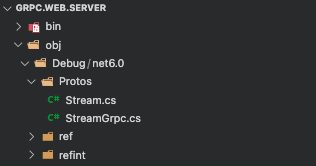
After executing the dotnet build command we should see generated classes under obj/Debug/net* folder as below.
Implementing Generated Class
Let’s create StreamImplService which implements our service method. FetchResponse is a server-side streaming RPC, so we need to send back multiple Response protocol buffers to our client.
using Grpc.Core;public class StreamImplService: StreamService.StreamServiceBase { private readonly List<string> _messages = new List<string>() { "Hello", "World", "!" }; public override async Task FetchResponse( Request request, IServerStreamWriter<Response> responseStream, ServerCallContext context) { while (!context.CancellationToken.IsCancellationRequested) { foreach (var message in _messages) { await responseStream.WriteAsync(new Response() { Result = message }); Thread.Sleep(750); } } }}
As you can see, instead of returning a simple response we write responses to an asynchronous stream IServerStreamWriter using the async method WriteAsync while cancellation token is not requested. Our Request model contains an Id property but I won’t do anything with that value at this moment.
We need to configure Program.cs (Startup.cs for previous versions) as below.
var builder = WebApplication.CreateBuilder(args);builder.Services.AddGrpc();var app = builder.Build();app.UseGrpcWeb();app.MapGrpcService<StreamImplService>().EnableGrpcWeb();app.Run();
For previous versions:
services.AddGrpc();app.UseGrpcWeb();app.UseEndpoints(endpoints => { endpoints.MapGrpcService<StreamImplService>().EnableGrpcWeb(); });
[According to Microsoft][13] gRPC template uses TLS by default and Kestrel doesn’t support HTTP/2 with TLS on macOS systems as a result of that we can say macOS doesn’t support ASP.NET Core gRPC with TLS and requires additional config for using HTTP2. Note: This configuration is only for gRPC if you want to use gRPC-web as in this post there is no need for doing this.
using Microsoft.AspNetCore.Server.Kestrel.Core;var builder = WebApplication.CreateBuilder(args);builder.Services.AddGrpc();builder.WebHost.ConfigureKestrel(options =>{ // Setup a HTTP/2 endpoint without TLS. options.ListenLocalhost(7264, o => o.Protocols = HttpProtocols.Http2);});var app = builder.Build();app.UseGrpcWeb();app.MapGrpcService<StreamImplService>().EnableGrpcWeb();app.Run();
💡 Don’t do this in production! This is intended for local development purposes only.
We also need to configure the SSL trust:
dotnet dev-certs https --trust
And finally, we are ready for requests.
Calling gRPC APIs with Kreya
Since we cannot send requests to gRPC APIs with Postman or other traditional approaches you might be looking for a tool that can help you with testing/debugging like Postman, In that case, Kreya might be a good choice.
Firstly you need to download Kreya from the URL written below.
[https://kreya.app/downloads/][14]
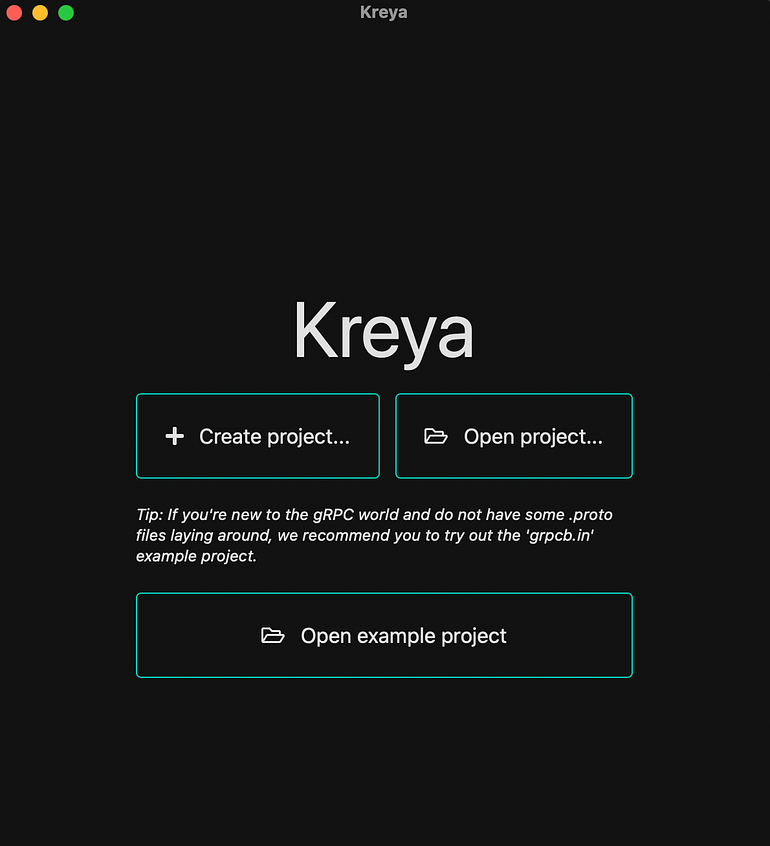
After installation click Create Project Button
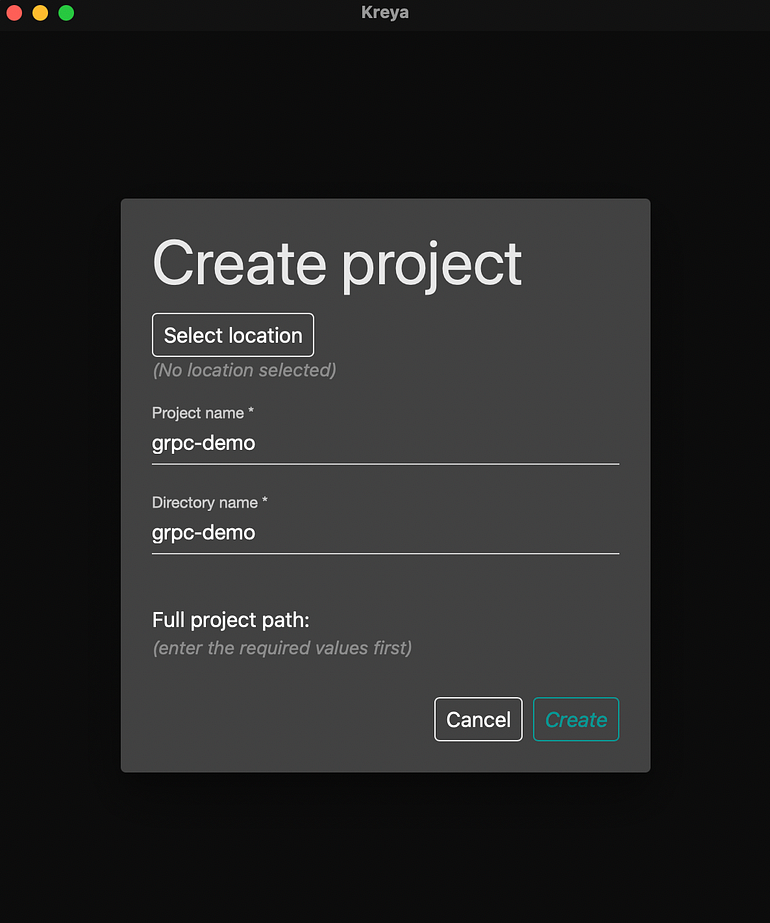
Then select a location for project files and fill in other inputs as you wish.
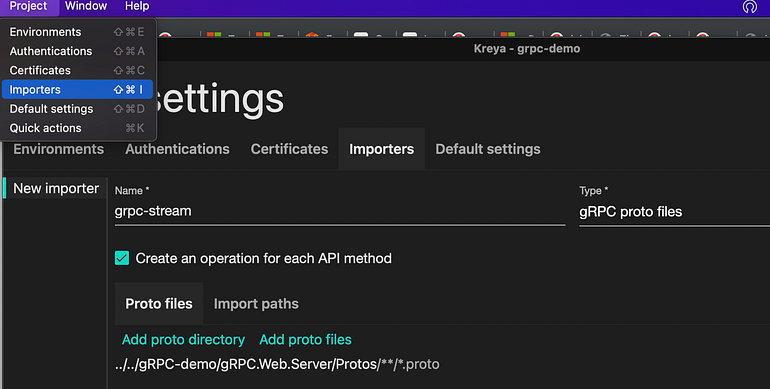
Click Project/Importers set type as gRPC proto files and add our Protos folder inside the .NET project as a proto directory.
You can set the endpoint from the Directory Settings section. If you want to use gRPC you should set the HTTP port that was configured for HTTP2 support, if you want to use gRPC-Web you can set both HTTP and HTTPS ports on Mac devices otherwise you should set the project’s HTTPS port.
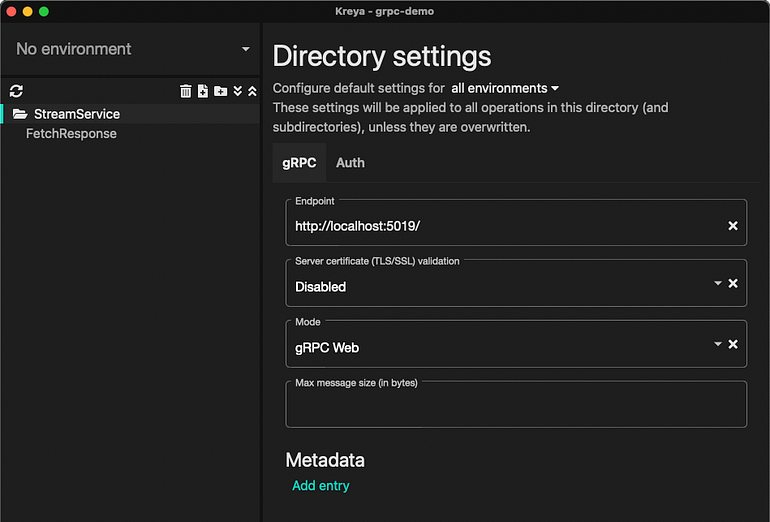
for gRPC-Web mode MAC
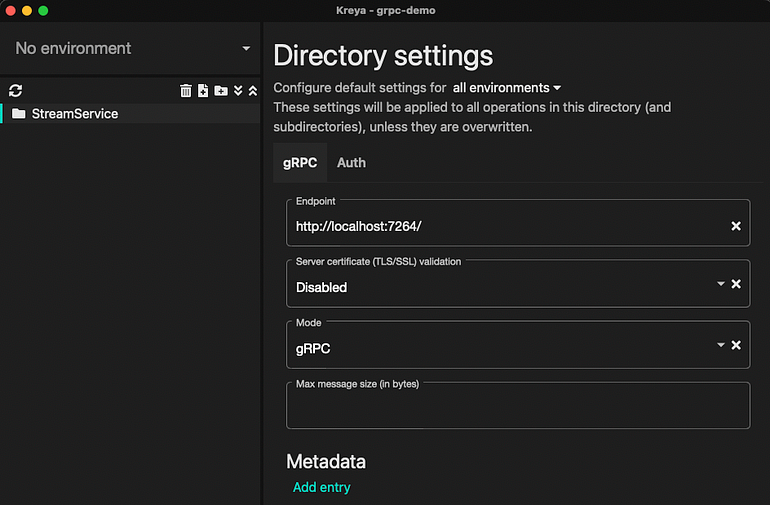
for gRPC mode MAC
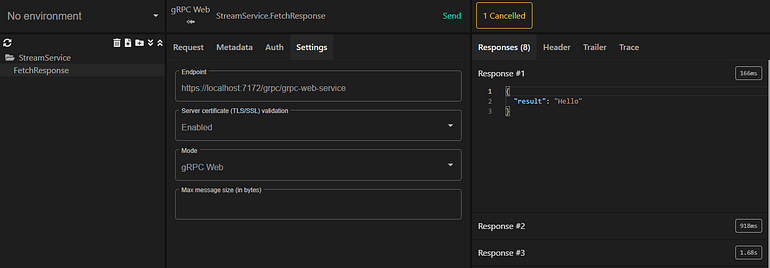
Then you can send requests by clicking on the FetchReponse label which comes from our proto file and may be different depending on your proto file.
As you can see, the responses will come until the cancellation.
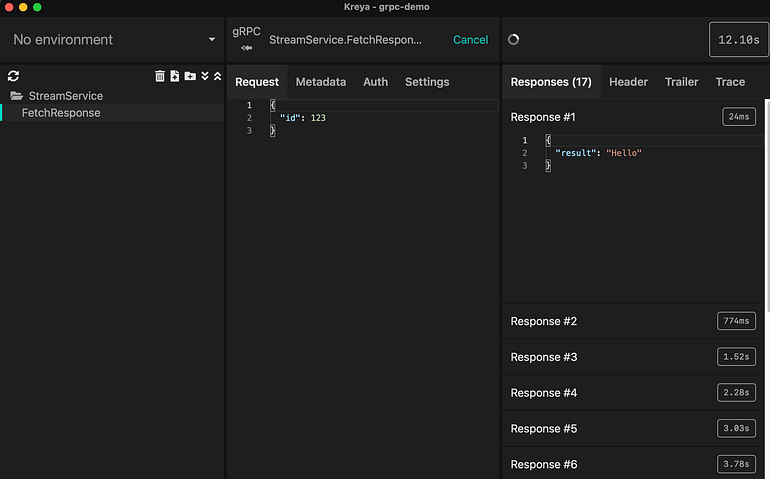
If you don’t like Kreya, you can take look at [gRPCurl][15].
Building gateway for gRPC-Web with YARP
Another challenge we will face is that if you want to use gRPC-Web with a gateway or if you want to use gRPC inside your project that already uses a gateway you should know that Ocelot does not support gRPC for now. Using [YARP][16] developed by Microsoft will be a good choice.
Let’s begin with creating a new project and installing Yarp.ReverseProxy with the commands below.
dotnet new web -o gRPC.Web.Gatewaydotnet add gRPC.Web.Gateway.csproj package Yarp.ReverseProxy
YARP is implemented as a .NET component, and so the majority of the sample code is in Program.cs (Startup.cs for previous versions).
var builder = WebApplication.CreateBuilder(args);// Add the reverse proxy to capability to the servervar proxyBuilder = builder.Services.AddReverseProxy();// Initialize the reverse proxy from the "ReverseProxy" section of configurationproxyBuilder.LoadFromConfig(builder.Configuration.GetSection("ReverseProxy"));var app = builder.Build();// Enable endpoint routing, required for the reverse proxyapp.UseRouting();// Register the reverse proxy routesapp.MapReverseProxy();app.Run();
Then, the appsettings.json file should be like the below.
{ "Logging": { "LogLevel": { "Default": "Information", "Microsoft.AspNetCore": "Warning" } }, "ReverseProxy": { "routes": { "grpc-web-service": { "clusterId": "grpc-web-service", "match": { "path": "grpc/grpc-web-service/{**catch-all}" }, "transforms": [ { "pathPattern": "{**catch-all}" }, { "RequestHeadersCopy": "true" }, { "RequestHeaderOriginalHost": "true" } ] } }, "clusters": { "grpc-web-service": { "destinations": { "destination1": { "address": "http://localhost:5019" } } } } }}
If you want to deep dive into YARP and learn advanced/detailed usages you can visit [this][18] article.
If you want to see an example config for gRPC with HTTP2 visit [this][19] article.
You should be able to send requests to our gRPC service with the gateway endpoint at this phase.
Building .NET gRPC-Web Client
Let’s create another project as our gRPC client with the command written below.
dotnet new console -o gRPC.Console.Client
Then we should create a folder that contains our proto file and move the proto file into it.
We are dependent on Google.Protobuf, Grpc.Net.Client, Grpc.Net.Client.Web, and Grpc.Tools packages for building a client with .NET.
dotnet add gRPC.Console.Client.csproj package Google.Protobufdotnet add gRPC.Console.Client.csproj package Grpc.Tools dotnet add gRPC.Console.Client.csproj package Grpc.Net.Clientdotnet add gRPC.Console.Client.csproj package Grpc.Net.Client.Web
After installing these packages, we need to define the proto file into our .csproj file to will be able to use auto-generated codes. This configuration is almost the same as our server but we will set the “GrpcServices” value as “Client” instead of “Server” this time.
<ItemGroup> <Protobuf Include="Protos\stream.proto" GrpcServices="Client" /></ItemGroup>
The path component of a gRPC channel’s address is ignored when making gRPC calls. For example,
GrpcChannel.ForAddress("https://localhost:5001/ignored_path")won’t useignored_pathwhen routing gRPC calls for the service.The address path is ignored because gRPC has a standardized, prescriptive address structure. A gRPC address combines the package, service and method names:
[https://localhost:5001/PackageName.ServiceName/MethodName][20][.][21]There are some scenarios when an app needs to include a path with gRPC calls. For example, when an ASP.NET Core gRPC app is hosted in an IIS directory and the directory needs to be included in the request. When a path is required, it can be added to the gRPC call using the custom
SubdirectoryHandler
According to Microsoft If you want to use a gateway or another prefix for gRPC calls we need to create a SubDirectoryHandler as specified below.
namespace gRPC.Console.Client.Handlers{/// <summary> /// A delegating handler that adds a subdirectory to the URI of gRPC requests. /// </summary> public class SubdirectoryHandler : DelegatingHandler { private readonly string _subdirectory;public SubdirectoryHandler(HttpMessageHandler innerHandler, string subdirectory) : base(innerHandler) { _subdirectory = subdirectory; }protected override Task<HttpResponseMessage> SendAsync( HttpRequestMessage request, CancellationToken cancellationToken) { var old = request.RequestUri;var url = $"{old.Scheme}://{old.Host}:{old.Port}"; url += $"{_subdirectory}{request.RequestUri.AbsolutePath}"; request.RequestUri = new Uri(url, UriKind.Absolute);return base.SendAsync(request, cancellationToken); } }}
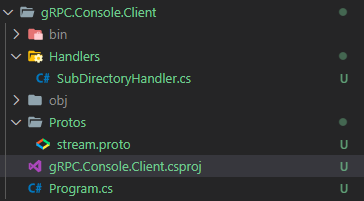
The final structure should be as below.
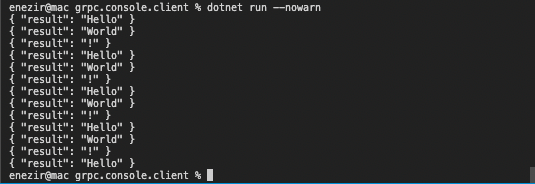
As the last step, we should write our logic into Program.cs as below.
Building Angular gRPC-Web Client
We must install protoc which is a protocol compiler and helps us with creating auto-generated files from .proto files as the first step.
Follow instructions from the URL below for installing on Windows devices.
[https://www.geeksforgeeks.org/how-to-install-protocol-buffers-on-windows/][23]
Don’t select the Javascript version, because we will use TypeScript.
For Mac devices:
brew install protobuf
Let’s create an angular project with the command below.
ng new gRPC.Angular.Client --routing=false --style=scss
Because protoc doesn’t support TypeScript we need to add the ts-protoc-gen plugin to our project.
npm install --save ts-protoc-gen
We need also to install [Improbable gRPC-web][24] library and [google-protobuf][25] package (+ its types [@types/google-protobuf][26]):
npm install --save google-protobufnpm install --save-dev @types/google-protobufnpm install --save @improbable-eng/grpc-web
Then, we should create a directory that contains our proto files. I have created a directory named “protos” and copied stream.proto file into there.
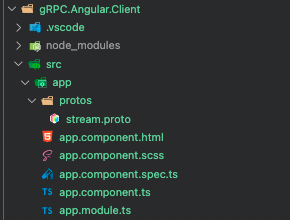
Let’s change our directory to “protos” folder and create auto-generated files such as service and client with protoc.
protoc --plugin=protoc-gen-ts="../../../node_modules/.bin/protoc-gen-ts" --js_out="import_style=commonjs,binary:../generated" --ts_out="service=grpc-web:../generated" stream.proto
For Windows devices, protoc-gen-ts path should be an absolute path, and instead of protoc-gen-ts you should use protoc-gen-ts.cmd.
protoc --plugin=protoc-gen-ts="{ABSOLUTEPATH}\node_modules\.bin\protoc-gen-ts.cmd" --js_out="import_style=commonjs,binary:{OUTPUTPATH}" --ts_out="service=grpc-web:{OUTPUTPATH}" {PROTO_FILE_PATH]
We should see 4 generated files after the execution of that command above.
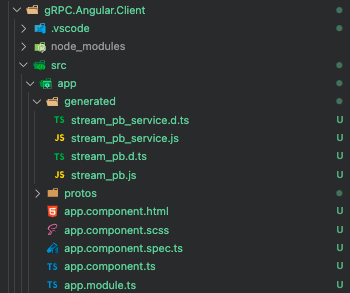
Now, let’s implement grpc-web into app.component.ts.
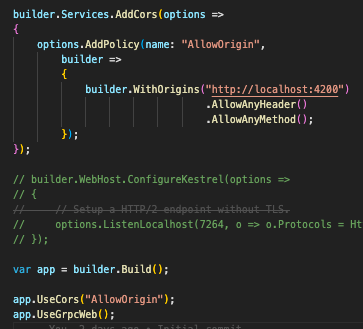
Do not forget to add a cors policy that allows 4200 port to the gRPC.Web.Server project.

Adding JWT authentication to server and clients
You may need to use JWT authentication with your grpc applications that can be easily implemented. All you need is to add the [Authorize] attribute on the server-side.
Then, you can add your token from Metadata section in Kreya.
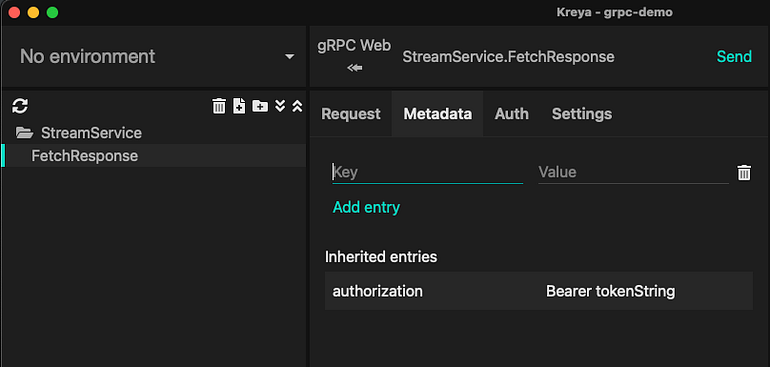
Adding your token into the metadata section will be enough for Angular.
.NET Client:
GitHub URL: [https://github.com/edisnezir/grpc-demo][27]